
Managing Smart Routing Rules
Creating, editing, and deleting, rules and rule sets.
For an overview of BR-DGE Smart Routing, go to Smart Routing.
Managing your rules
Using the Smart Routing tab of the BR-DGE Portal, anyone with the correct permissions can view, edit or delete existing rules and fragments, or create new ones.
- 🏗️ Creating Rules
- ✏️ Editing Rules
- ✏️ Editing Fragments
- 🗑️ Deleting Rules
🏗️ Creating Rules
To create a new rule in the BR-DGE Portal:
- Navigate to the Smart Routing tab.
- Select Add Rule at the end of the current rule set.
A blank rule is added to the page.
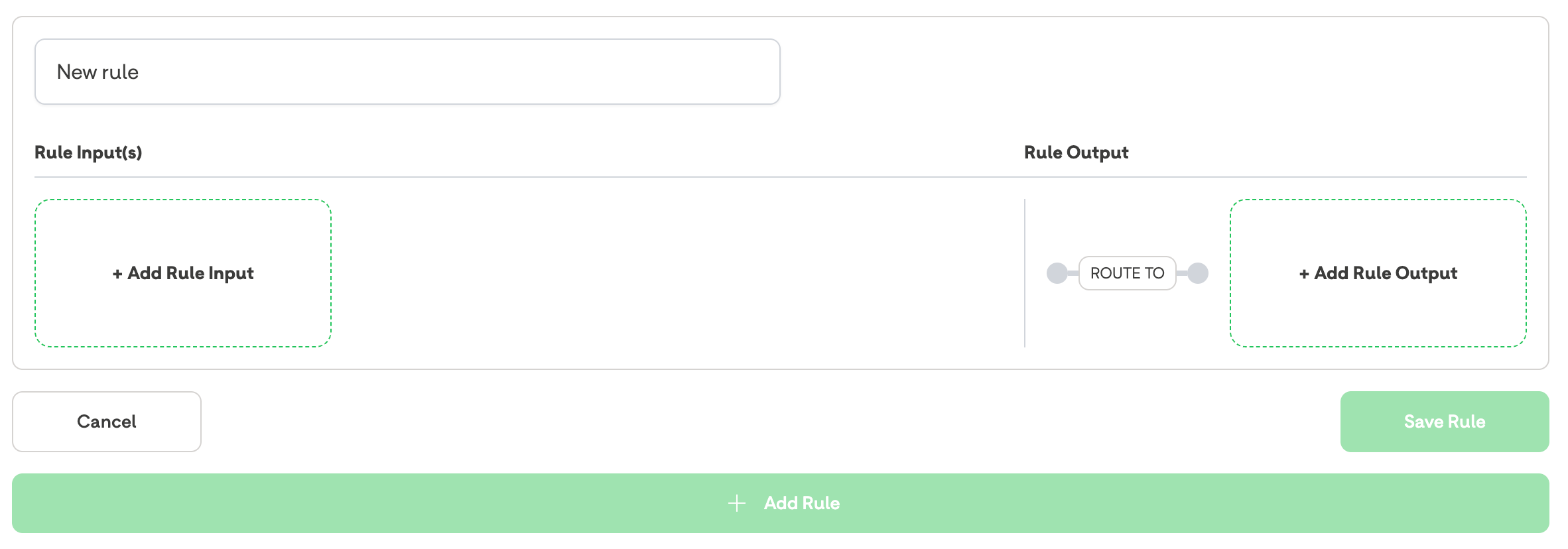
By default, all newly created rules are given the name New rule. We strongly recommend that you change New rule to a meaningful name so that future management of your rules is easier.
Adding an Input Fragment
To add an input fragment to your new rule:
- Select anywhere inside the green dashed line of Add Rule Input to load the input fragment selector.
- Select the relevant input fragment you wish to use.
In the example below, we are creating a Monetary Input fragment, with the name GBP Greater Than £100 which would match on any payments where the currency was GBP, and the amount was greater than or equal to £100.
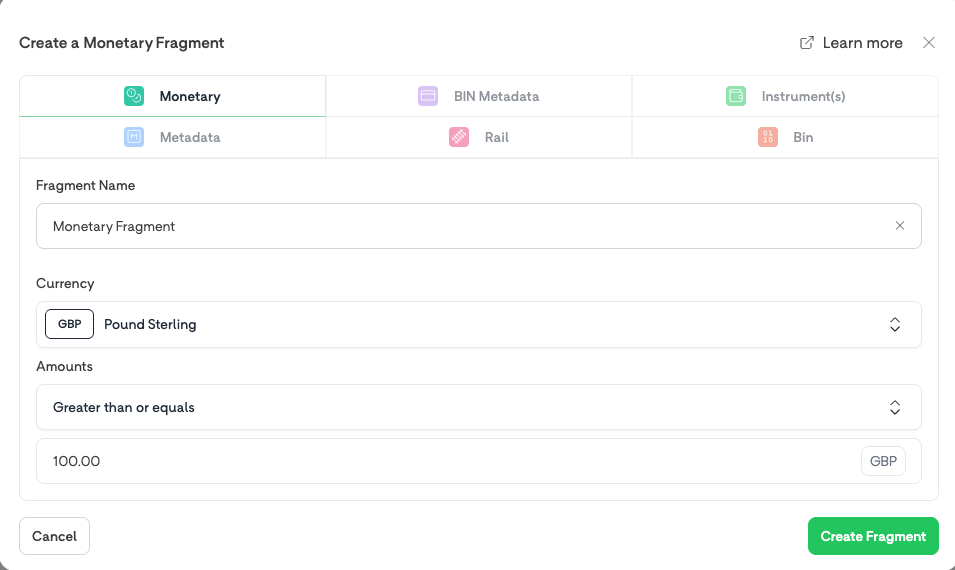
- Select Create Fragment to generate the fragment and insert it into your rule.
You cannot change a fragment type after adding the fragment to a rule; delete the fragment and add the new fragment type.
Adding an Output Fragment
To add an output fragment to your new rule:
- Select anywhere inside the green dashed line of Add Rule Output to load the output fragment selector.
- Select the relevant output fragment you wish to use.
In the example below, we are creating a Processor Priority Output Fragment, with the name Adyen then Stripe which would route any transactions that match our input rule fragments first to the Adyen PSP, and then to the Stripe PSP.
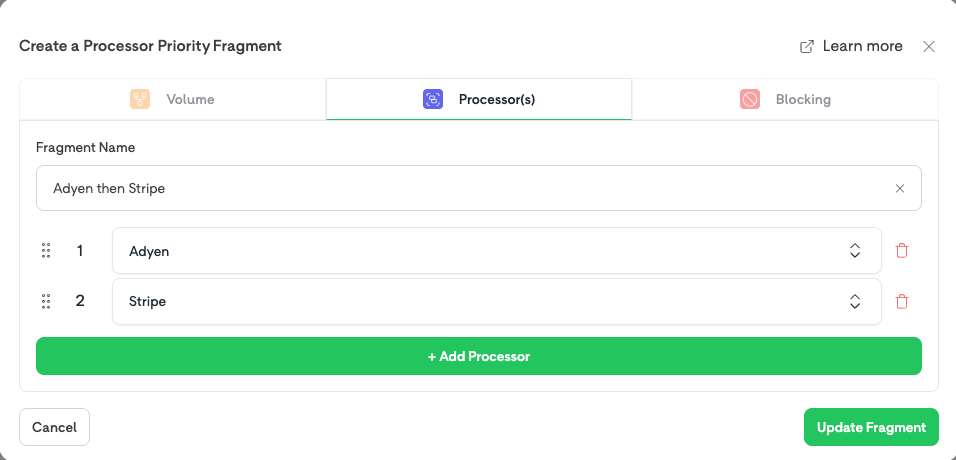
- Select Create Fragment to generate the fragment, and insert it into your rule.
To be able to save a rule, you must select an output fragment.
Adding a Blocking fragment
To create a blocking rule, navigate to the Rules Editor in the BR-DGE portal:
- Create an Output fragment
- Select the Block tab.
- Enter a Fragment name.
- Select Create fragment.
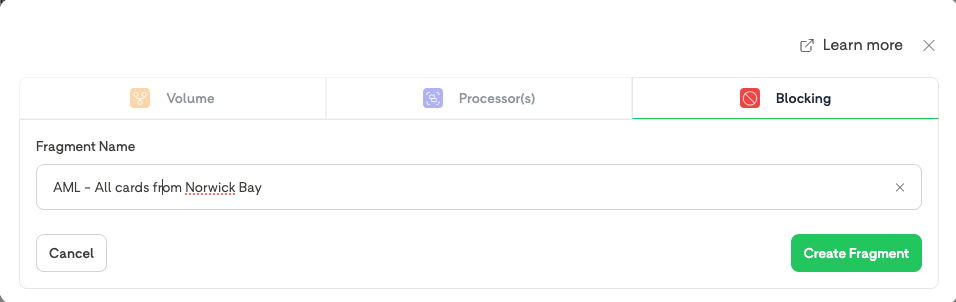
Saving a Rule
When you have finished creating your new rule, select Save Rule.
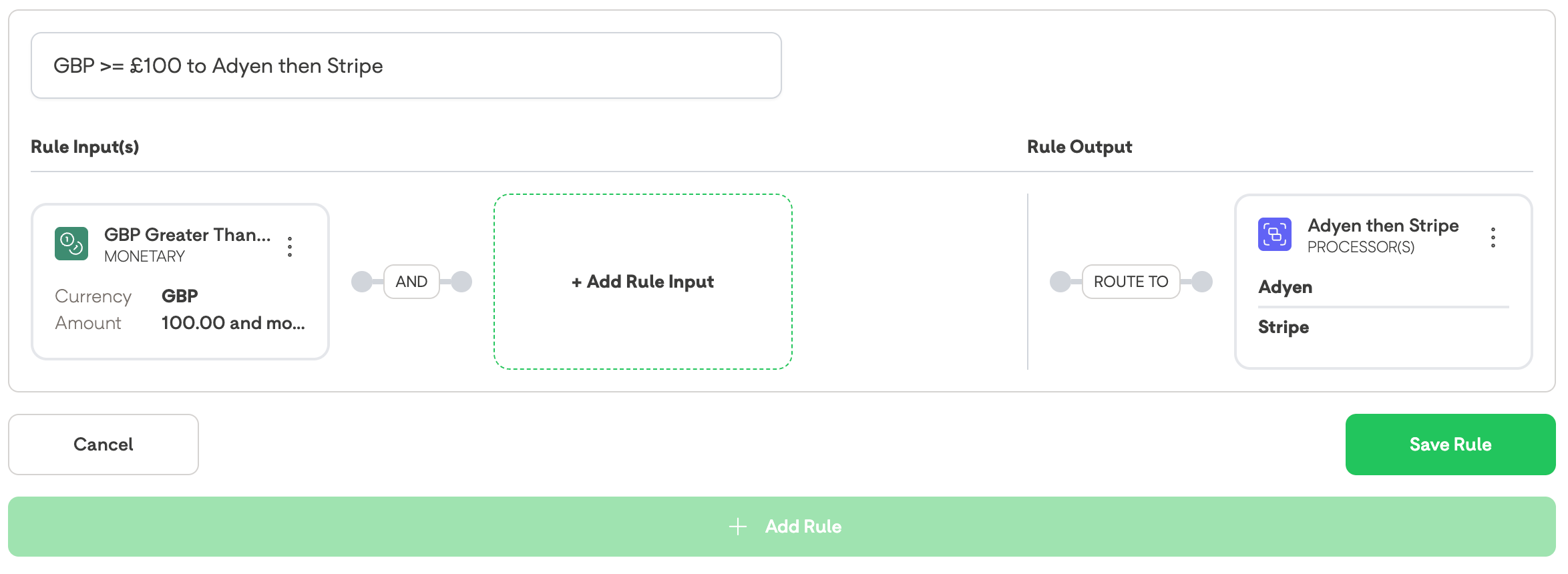
A Finalised Rule, Ready to be Saved
Your new rule is now live and ready to use.
BR-DGE Smart Rules are cached for a short period of time, so you may need to wait a few minutes before a transaction starts to use the newly created rule. The rule cache updates no more than 10 minutes after the rule has been created.
✏️ Editing Rules
Editing Smart Routing Rules is easily done using the same interface you use to create them. Typical reasons for editing a rule include updating rule names, adding or removing fragments, and editing existing fragments.
- Navigate to the Smart Routing tab.
- Locate the rule you wish to edit.
- Select the 3 dot kebab menu at the top right of the rule, and select Edit.

- Using the Rule Edit view, update, or completely change a rule in the same way you would if you were creating a new rule.
You cannot update the type of a fragment after it has been created. To alter a fragment type after creation, delete the original fragment, and recreate it again
To reorder rules:
- Navigate to the Smart Routing tab.
- Select Reorder Rules.
- Select the up and down arrows on the left of each rule to reorder your rule set.
✏️ Editing Fragments
To edit an existing fragment:
- Select the 3 dot kebab menu at the top right of the fragment you want to edit.
- Select Edit.
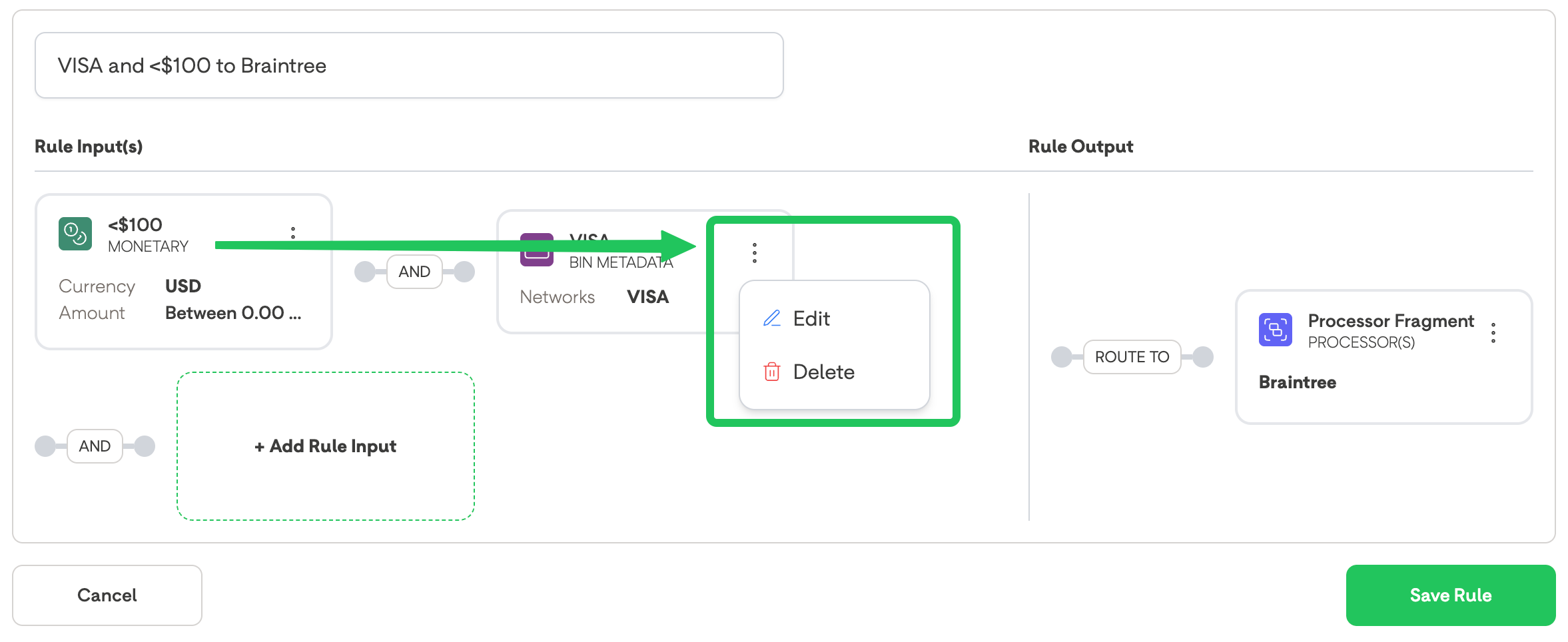
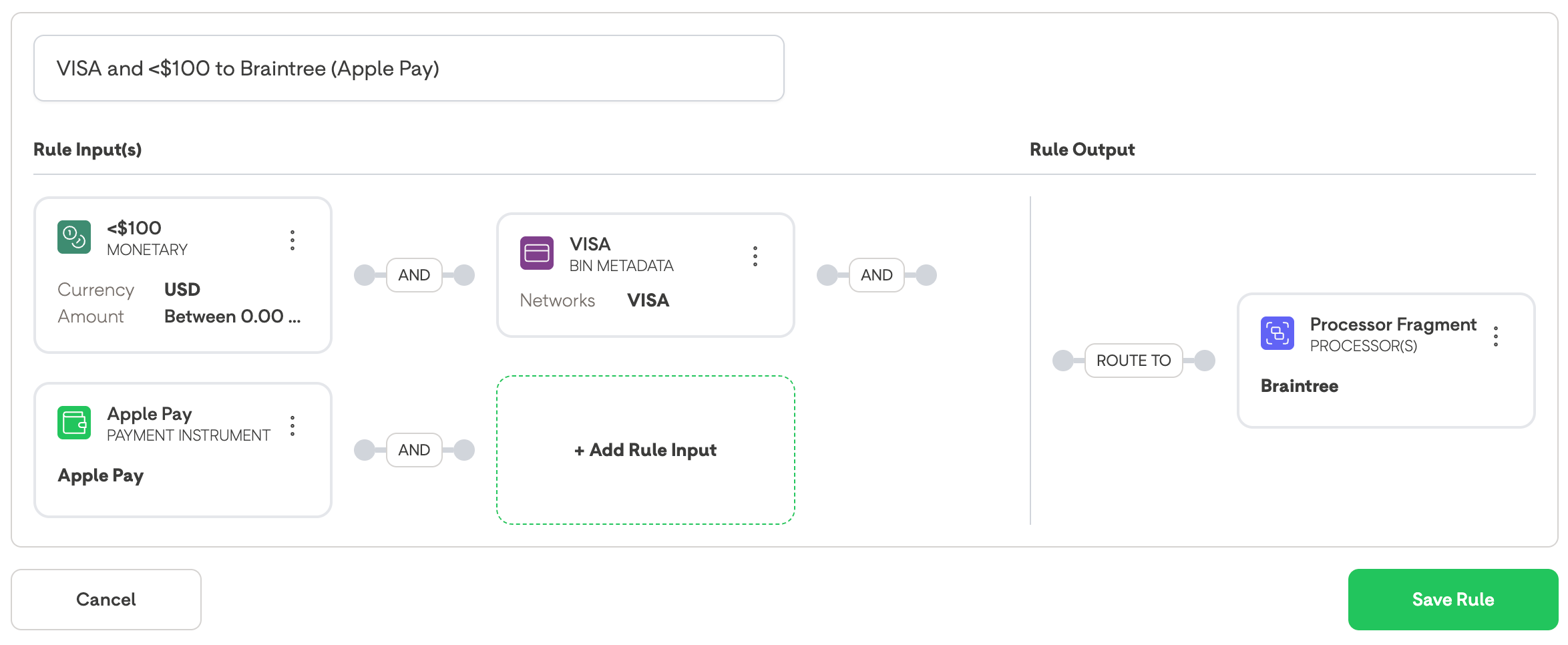
New input fragments can also be added to an existing rule in the edit view.
To add a new input fragment, after entering the rule edit mode, follow the steps in Adding an Input Fragment.
- When editing is complete, select Save Rule to finalise your changes.
- If you no longer wish to carry out your staged changes, select Cancel. Selecting Cancel discards your changes, and reverts the rule, or fragment back to its original state.
BR-DGE Smart Rules are cached for a short period of time, so you may need to wait a few minutes before a transaction starts to use the newly created rule. The rule cache updates no more than 10 minutes after the rule has been created.
🗑️ Deleting Rules
You can delete your existing Smart Routing Rules in the BR-DGE portal.
Deleting a Smart Rule is an immediate, and irreversible action. If you delete a rule in error, BR-DGE cannot revert your rules to a previous state, and you will need to manually recreate them.
To delete an existing rule:
- Navigate to the Smart Routing tab.
- Locate the rule you wish to delete.
- Select the 3 dot kebab menu at the top right of the fragment you want to delete, and select Delete.

- Select Delete to confirm the rule deletion or Cancel to return to the previous view. If you select Cancel, no changes are made to your rule and the rule remains active.
Support
To investigate transaction behaviour, go to the Transaction History.
If you require any further with managing your routing rules, get in touch with our support team.
Updated 4 months ago