
PAN Lookup
The BR-DGE Portal PAN Lookup feature allows authorised users to securely retrieve the Primary Account Number (PAN) and Cardholder Name associated with Tokenised payment instruments. This provides direct access to full payment details when necessary for your business operations.
Access to the PAN Lookup tool requires special access to be granted by BR-DGE. To request access to this portal feature, please contact our support team.
Prerequisites
To successfully use the PAN Lookup feature of the BR-DGE Portal you will require the following:
- Admin access to the BR-DGE Portal.
- Special access to the PAN Lookup feature, over and above your standard Admin access.
- At least one multi-use, or single-use token.
If you do not yet have access to the BR-DGE Portal, or your user account lacks the permission to access PAN Lookup, please contact our support team for guidance and support with gaining access.
How to Look Up a PAN
To lookup a PAN, login to the BR-DGE Portal as an admin user, with access to the feature, and select the "PAN Lookup" option in the navigation bar.
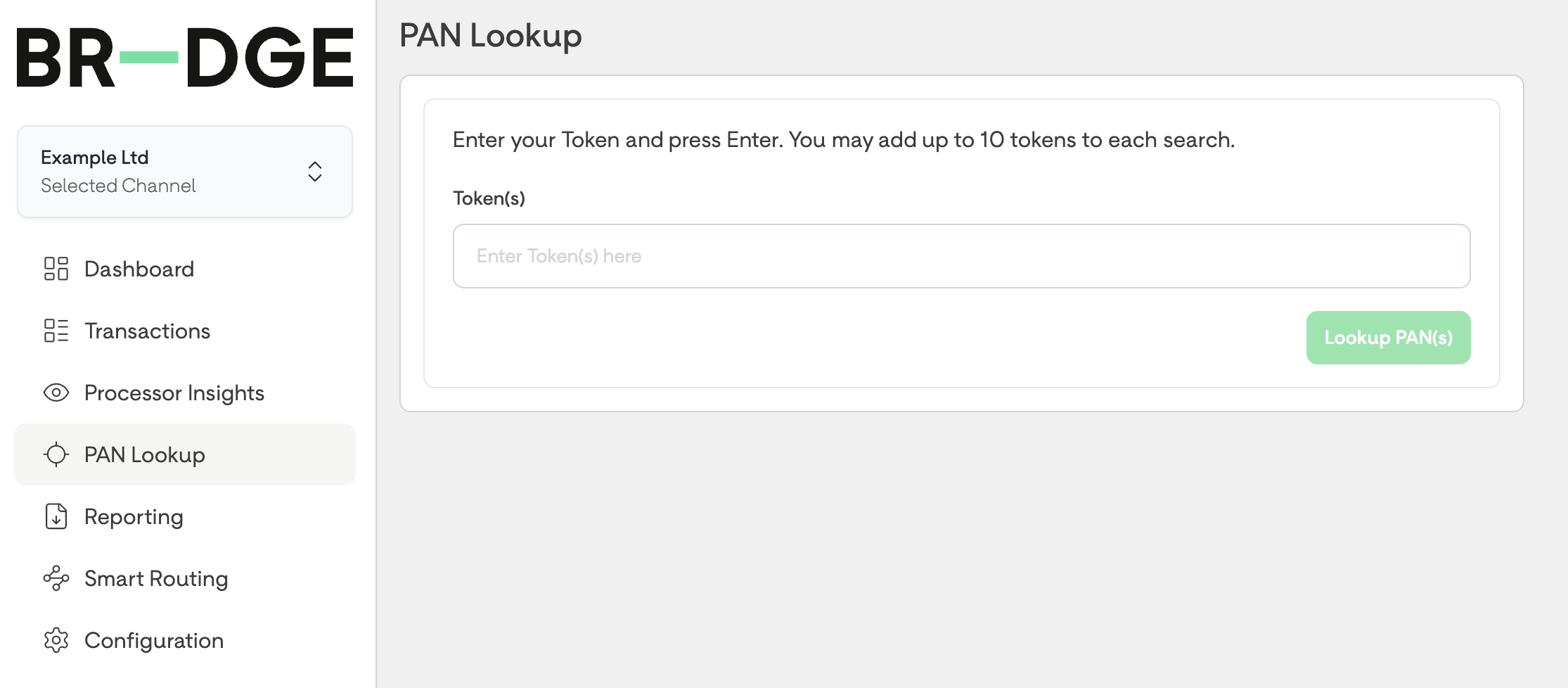
In the PAN Lookup tab you can enter upto 10 different BR-DGE tokens in the input box. After entering each token to the "Token(s)" input box press enter to confirm the id and add the token to the search.
If you do not press enter the token id will not be queried when clicking "Lookup PAN(s)".
You must provide at least 1 token for the "Lookup PAN(s)" button to be activated. Entering the same value more than once will result in a validation error.
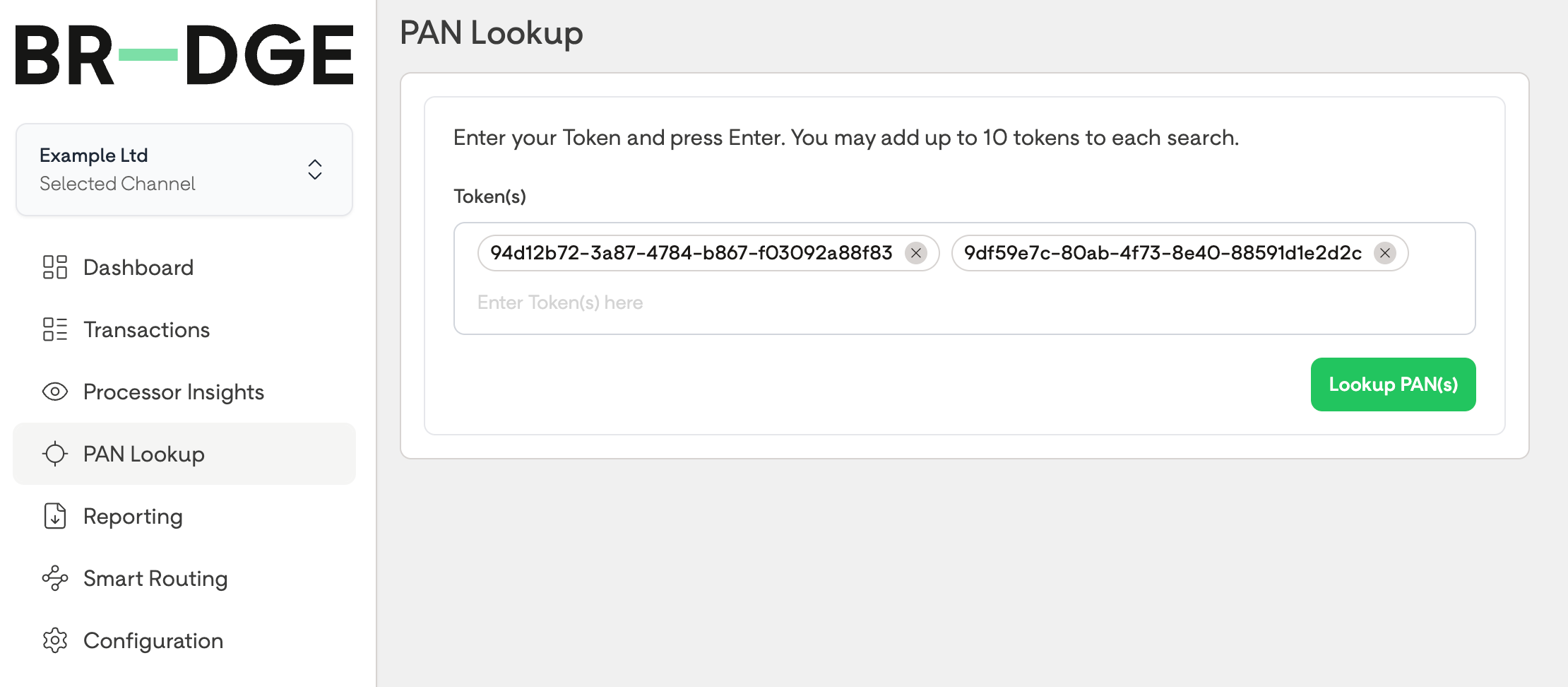
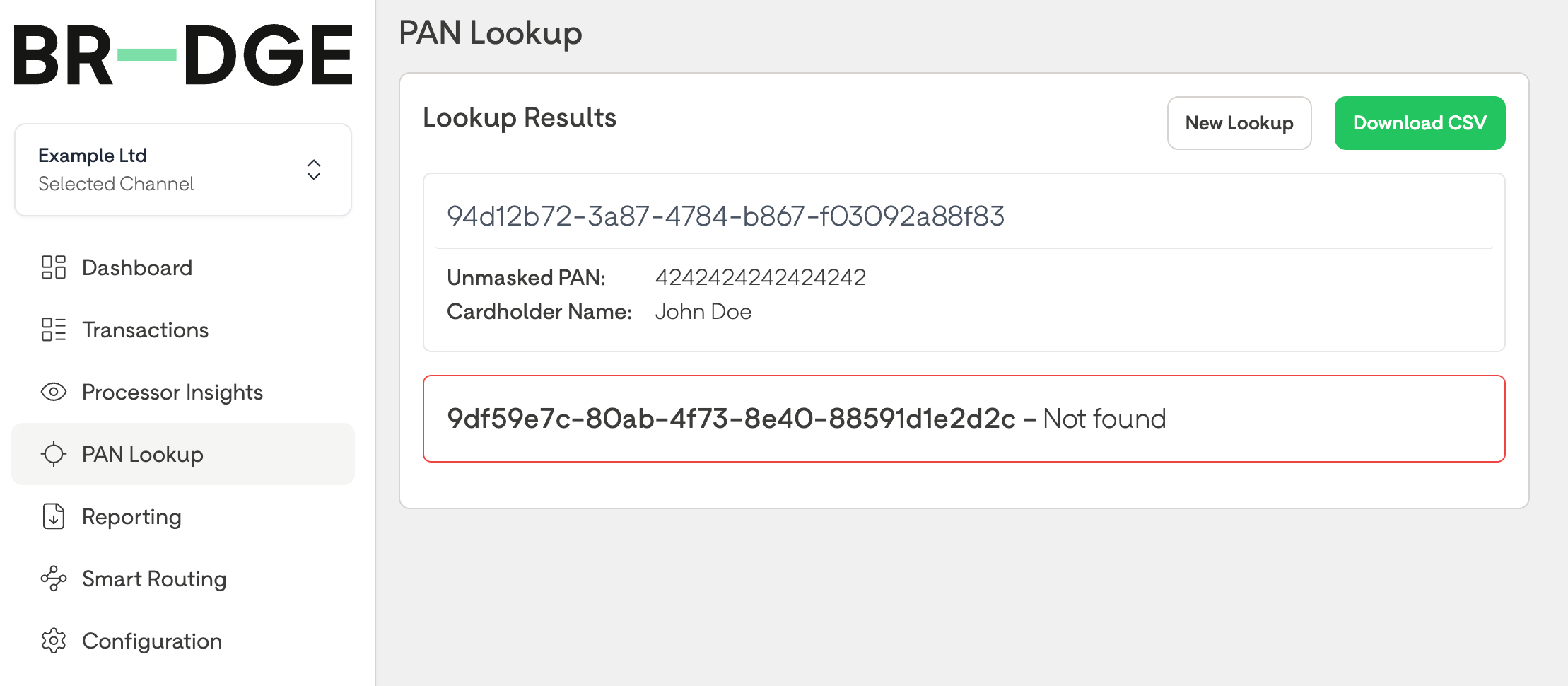
After clicking the "Lookup PAN(s)" button you will be shown a results page with the outcome of your search. If any tokens cannot be found you will see a "Not Found" message next to the token id that could not be located.
PAN Lookup is a Retail Channel specific feature, you must select the correct channel for your BR-DGE token, using the channel selection drop down, prior to searching for a PAN; selecting the incorrect Retail Channel prior to running a lookup query will result in a "Not Found" error for the token, even if the token is valid on another channel.
PAN details are output to the screen after clicking the "Lookup PAN(s)" button. Ensure you are in a secure environment and that your screen is not visible to unauthorised individuals, or captured by screen-sharing software, prior to clicking this.
Exporting Data
BR-DGE accepts no responsibility for the subsequent use, handling, or storage of data once it has been retrieved or downloaded from the Portal. It is the sole responsibility of the merchant to ensure that all downloaded information is managed in strict accordance with PCI-DSS requirements and applicable data protection regulations.
You can export the result of your lookup to a CSV. After the lookup has finished you can use the "Download CSV" button on the results screen to download a local copy.
The exported file includes:
- Token ID
- Cardholder Name
- Primary Account number
- Request Result
Support
For support with the PAN Lookup feature please contact our support team.
Updated 9 months ago